Minecraft remains one of the most popular games globally, and in 2026, the installation process has become more streamlined. Whether you're installing on Windows PC, Mac, Linux, or Android, this comprehensive guide will walk you through every step. By the end of this article, you'll be ready to jump into your first world.
System Requirements for Minecraft (2026)
Before you begin the installation process, it's essential to ensure your device meets the minimum requirements. Here's what you need:
- Processor: Intel Core i3-3210 or AMD A8-7600 (minimum)
- RAM: 4GB (minimum), 8GB (recommended)
- GPU: Intel HD Graphics 4000 or AMD Radeon R5 (minimum)
- Storage: 1GB available space (Java Edition), 200MB (Bedrock Edition)
- OS: Windows 10/11, macOS 10.14+, or Linux (64-bit)
For detailed specs, visit our Installation Guide.
How to Install Minecraft on Windows PC
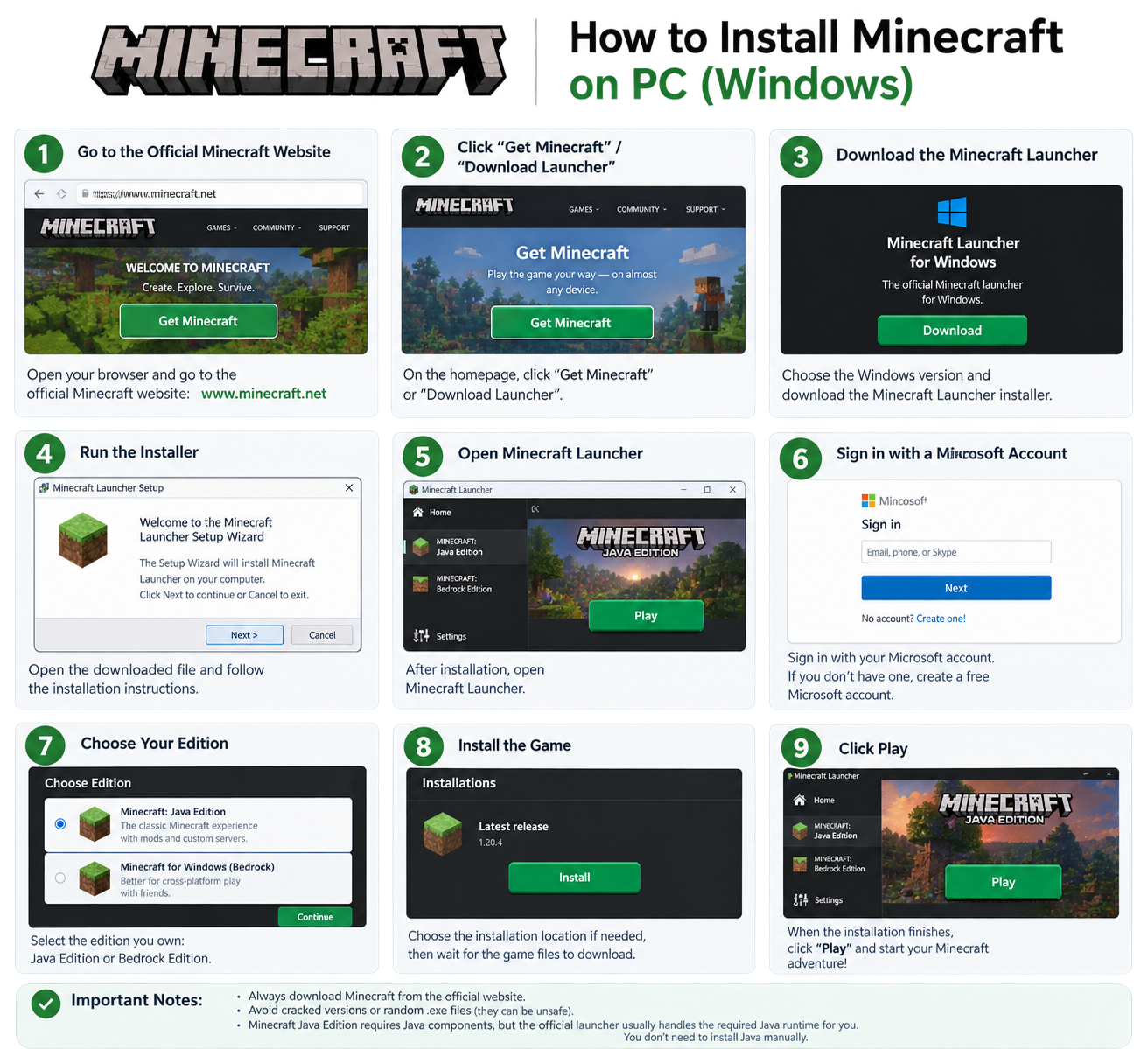
Installing Minecraft on Windows PC is straightforward. Follow these steps:
- Visit the Official Website: Go to minecraft.net/download.
- Choose Your Edition: Select either Java Edition (for mods) or Bedrock Edition (for cross-platform play).
- Download the Launcher: Click "Download for Windows" to get the installer.
- Run the Installer: Double-click the downloaded file and follow the on-screen instructions.
- Sign In: Log in with your Microsoft account.
- Install & Play: Click "Install" and then "Play" to start your adventure.
Tip: Always download from the official website to avoid malware. Check our Privacy Policy for more details.
How to Install Minecraft on Mac
Mac users can install Minecraft easily. Here's the process:
- Visit the Official Website: Go to minecraft.net/download.
- Download for Mac: Click "Download for macOS" to get the `.dmg` file.
- Open the DMG File: Double-click the downloaded file.
- Drag to Applications: Drag the Minecraft icon to your Applications folder.
- Launch Minecraft: Open Minecraft from your Applications folder.
- Sign In & Play: Log in with your Microsoft account and start playing.
For more tips, check our FAQ Page.
How to Install Minecraft on Linux
Linux users can install Minecraft using the official launcher or via terminal:
- Visit the Official Website: Go to minecraft.net/download.
- Download for Linux: Select ".deb" or ".rpm" based on your distribution.
- Install via Terminal: Use `sudo dpkg -i minecraft.deb` (for Debian/Ubuntu).
- Launch Minecraft: Open the launcher from your applications menu.
- Sign In & Play: Log in with your Microsoft account.
How to Install Minecraft on Android (Pocket Edition)
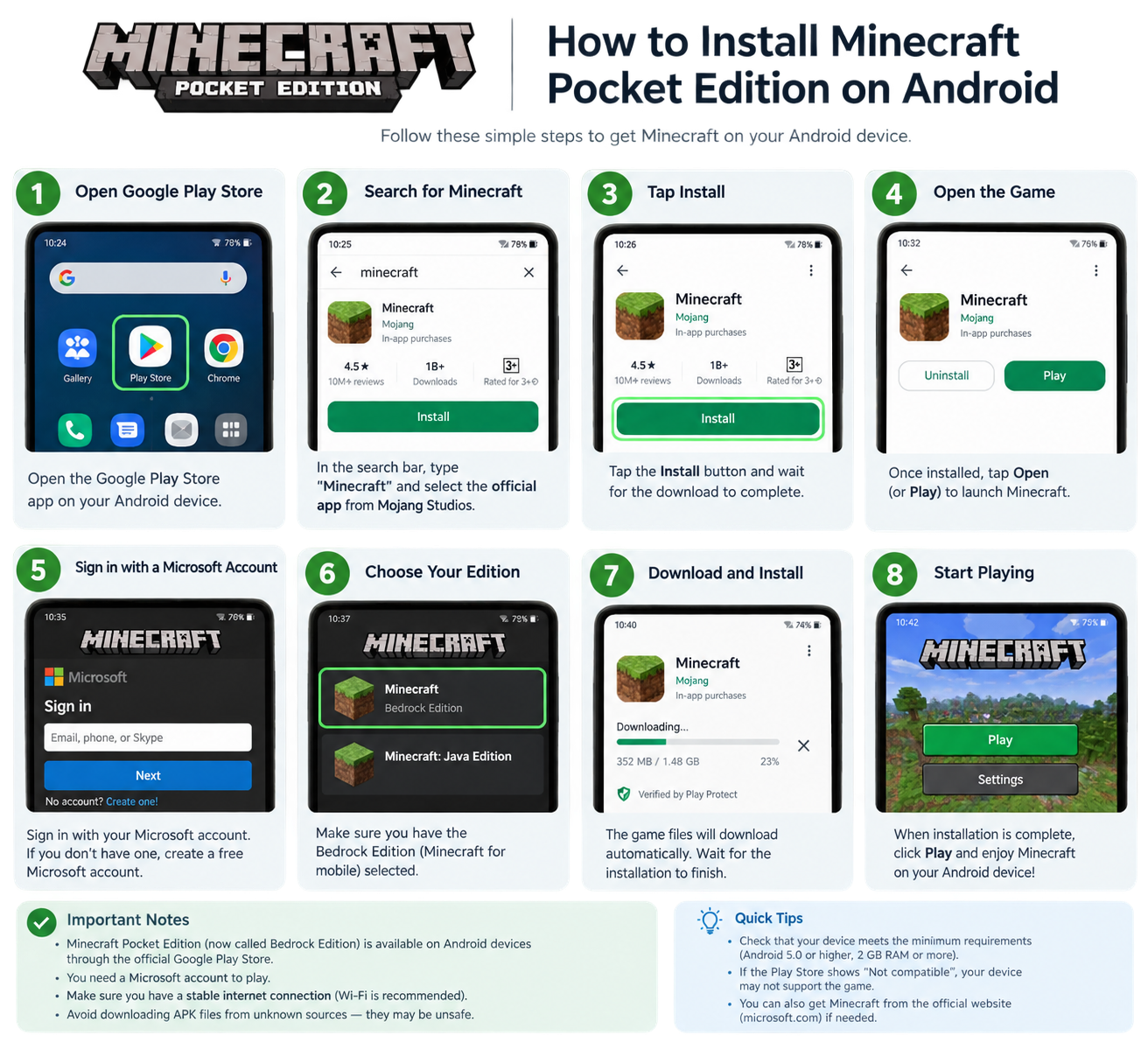
The Minecraft Pocket Edition (Bedrock Edition) is available on Android. Here's how to install it:
- Open Google Play Store: Launch the Play Store on your Android device.
- Search for Minecraft: Type "Minecraft" in the search bar.
- Select the Official App: Look for the app with the developer "Mojang Studios".
- Purchase & Install: Tap "Buy" or "Install" to download the game.
- Launch Minecraft: Open the app and start playing.
For more information about Pocket Edition, visit our Homepage.
How to Install Minecraft on iOS (iPhone/iPad)
iOS users can install Minecraft from the App Store:
- Open App Store: Launch the App Store on your iOS device.
- Search for Minecraft: Use the search bar to find "Minecraft".
- Download the Game: Tap "Get" and confirm with Face ID or Touch ID.
- Launch Minecraft: Open the app and start playing.
How to Install Minecraft Mods (Optional)
If you want to enhance your gameplay with mods, here's a quick guide:
- Install Forge or Fabric: Download and install Forge or Fabric for your Minecraft version.
- Download Mods: Get mods from trusted sources like CraftHub Mods or CurseForge.
- Place Mods in Folder: Put the `.jar` files in your `mods` folder.
- Launch with Mods: Select the Forge/Fabric profile and click "Play".
Explore the best mods on our Mods Page.
How to Install Minecraft Add-ons (Bedrock Edition)
Add-ons customize your Bedrock Edition world. Here's how:
- Download Add-ons: Get `.mcaddon` or `.mcpack` files from trusted sources.
- Tap the File: Tap the downloaded file, and Minecraft will automatically import it.
- Enable in World Settings: Go to Add-ons → Select the pack → Enable it.
Learn more about add-ons in our Add-ons Guide.
Troubleshooting Common Installation Issues
Here are common issues and their solutions:
- Game Won't Launch: Ensure Java is updated. Download the latest version from java.com.
- Installation Fails: Check your internet connection and free disk space.
- Account Issues: Verify your Microsoft account and log out/in.
- Mods Not Working: Ensure Forge/Fabric version matches your Minecraft version.
For more troubleshooting tips, visit our FAQ Page.
Conclusion
Installing Minecraft in 2026 is a straightforward process. Whether you're on Windows, Mac, Linux, Android, or iOS, following this guide ensures a smooth experience. Remember to always download from official sources and keep your game updated. Explore our Homepage for more Minecraft resources, or visit our Mods Page to enhance your gameplay.